
Manage SIP connections
Every procedure on this page starts the same way: in the Navigation pane, expand Voice channels, and select SIP connections.
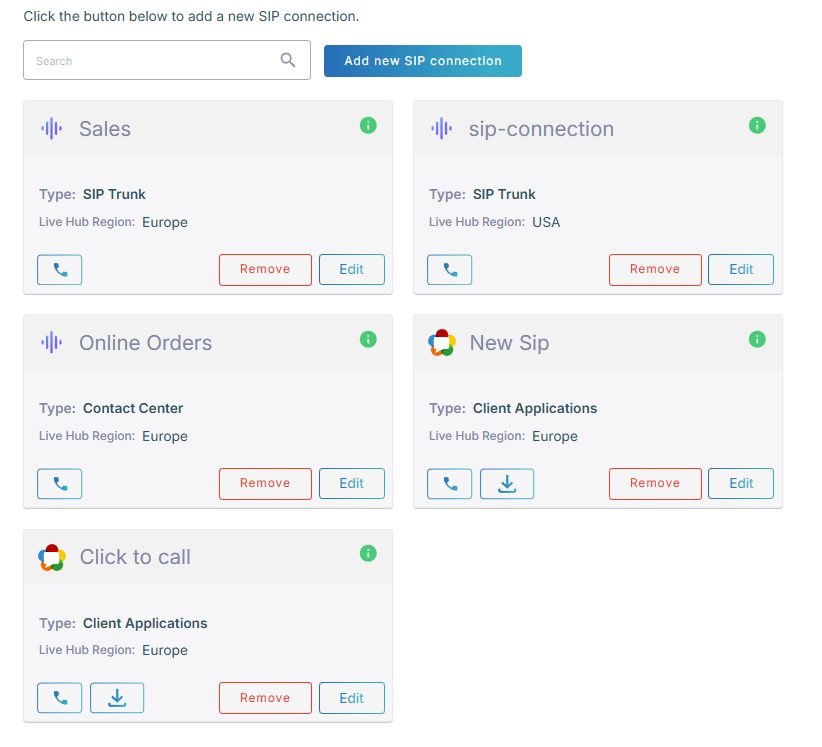
Edit a connection
On the connection's card, click Edit. The tabs are the same ones you filled in when you created it. See Create a generic SIP connection for what each holds. Make your changes, and then click Update.
Find the connection's FQDN and ID
The connection's FQDN and ID are both generated when the connection is created, and both appear on the Info tab.
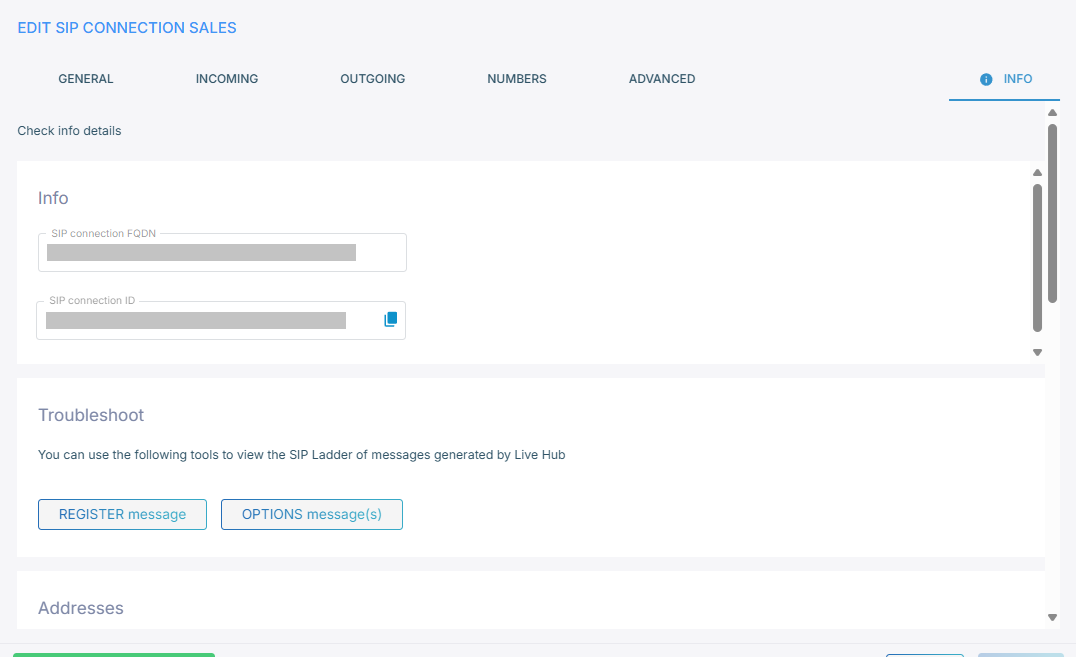
- 'SIP connection FQDN' is the address the provider sends calls to. It is also the value that 'FQDN (Request-URI)' authentication matches against.
- 'SIP connection ID' is the connection's identifier. You need it when you configure other features, such as Click-to-call.
Troubleshoot with the SIP ladder
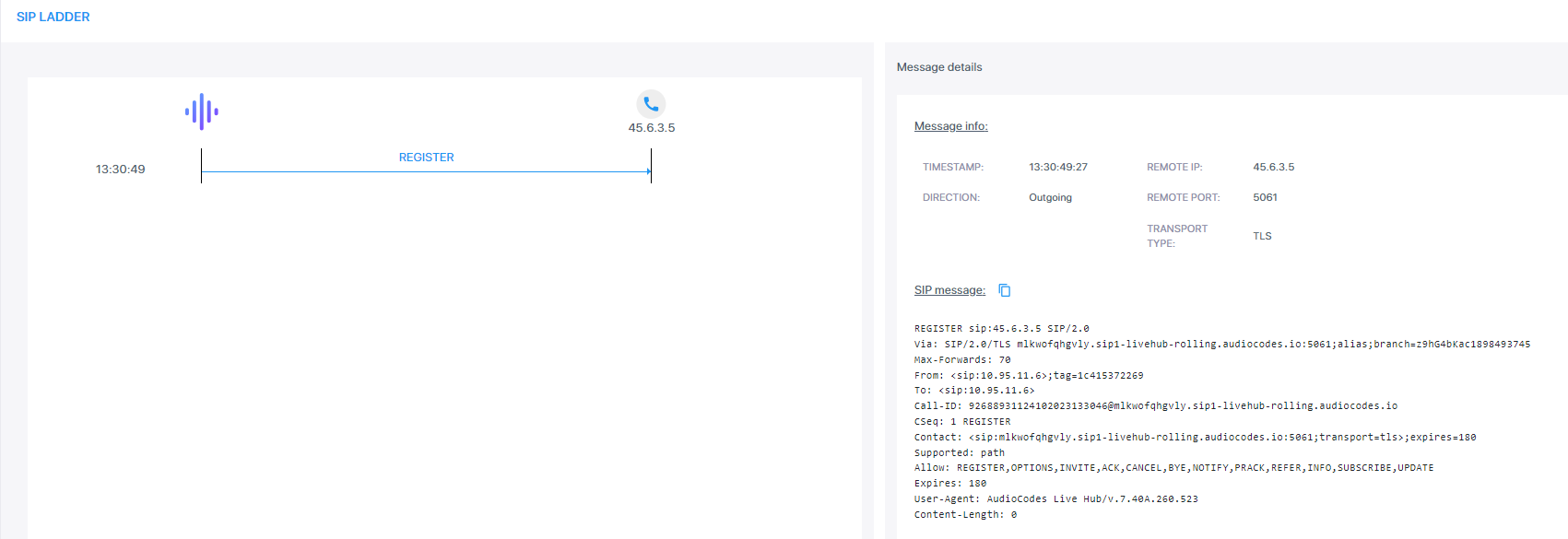
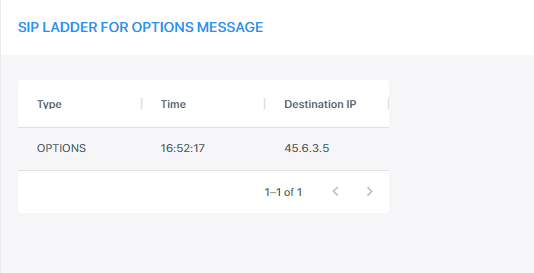
Under Troubleshoot on the Info tab, Live Hub can show you the SIP ladder for the last REGISTER and the last OPTIONS exchange on the connection.
| Button | What it shows |
|---|---|
| REGISTER message | The registration exchange: how Live Hub told the provider where it can be reached. |
| OPTIONS message | The capabilities exchange: what each side told the other it supports. |
Each button requires the corresponding mechanism to be enabled. Without it, Live Hub displays a warning instead of a ladder.
To see the REGISTER ladder:
- On the connection's card, click Edit, and then select the General tab.
- Under Registration and authentication, from the 'Registration' drop-down list, select Enabled.
- Click Update.
-
On the Info tab, under Troubleshoot, click REGISTER message.
To see the OPTIONS ladder:
- On the connection's card, click Edit, and then select the Advanced tab.
- Under Keep Alive, from the 'Keep alive' drop-down list, select Enabled.
- Click Update.
-
On the Info tab, under Troubleshoot, click OPTIONS message.
Test a connection
You can place a test call without creating a routing rule first.
Click-to-call connections are tested differently. See Test Click-to-call.
You can start the test from either the card or the edit dialog. Do one of the following:
-
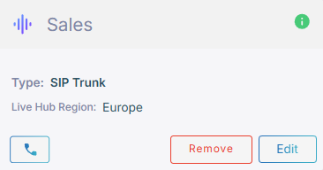
On the connection's card, click the phone icon
 .
.
-
On the connection's card, click Edit, and then click Test your SIP connection.
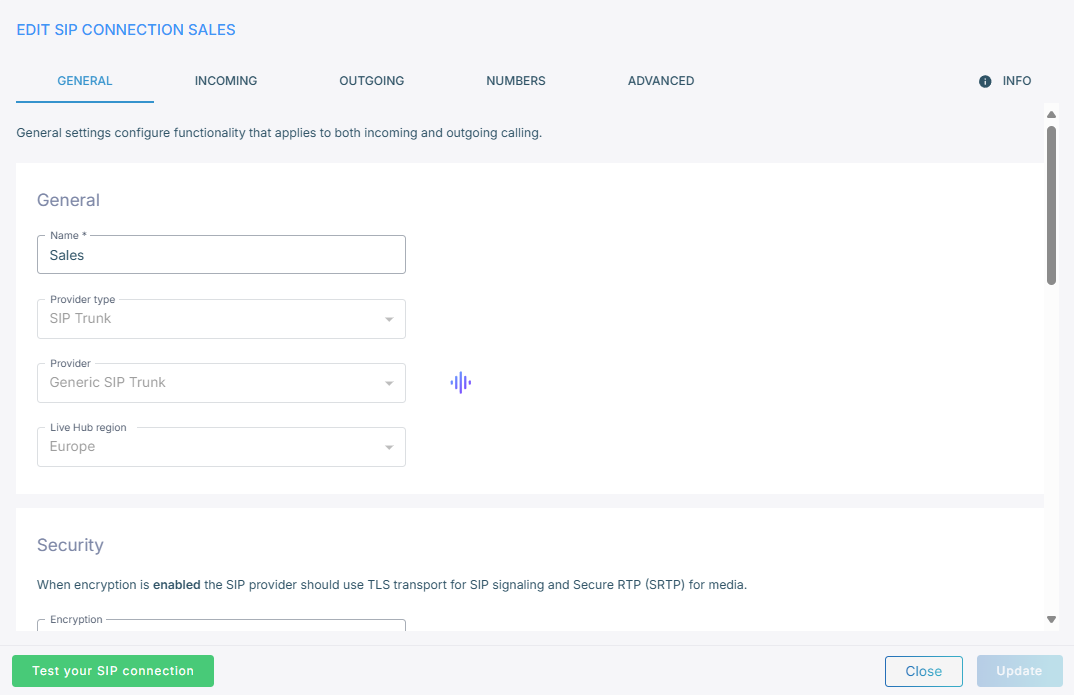
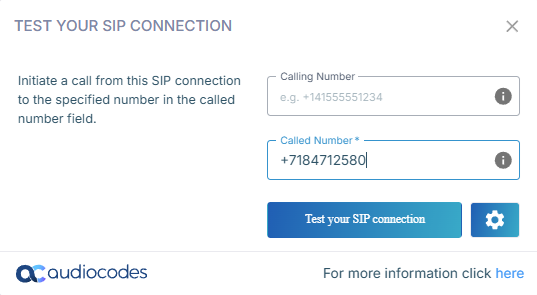
Either way, the same dialog appears.
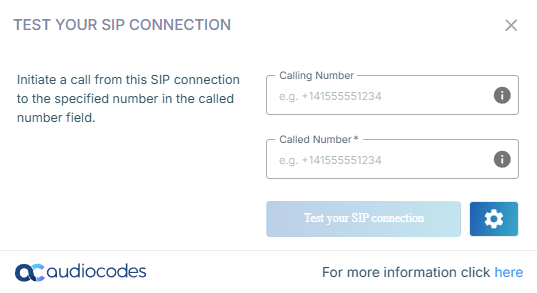
To place the test call:
-
In the 'Called Number' field, enter the destination.
-
Optional: in the 'Calling number' field, enter the number to show the person you are calling.
-
Optional: click the settings icon
 to select a different
microphone or speaker.
to select a different
microphone or speaker.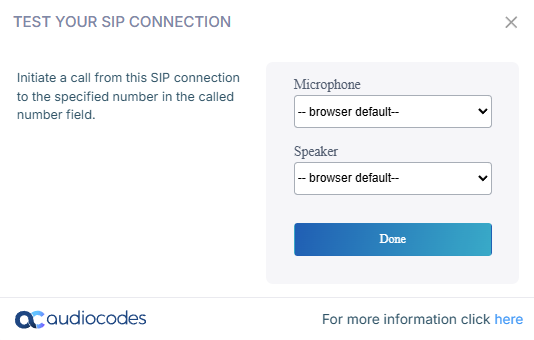
-
Click Done.
-
Click Test your SIP connection.
Delete a connection
On the connection's card, click Remove, and then click Yes to confirm.